
How to add a LinkedIn account in 12Pilot
Open LinkedIn Accounts, click Connect Account, log in on LinkedIn’s page in a new tab, then come back. 12Pilot picks up the seat automatically — no password stored in the app.
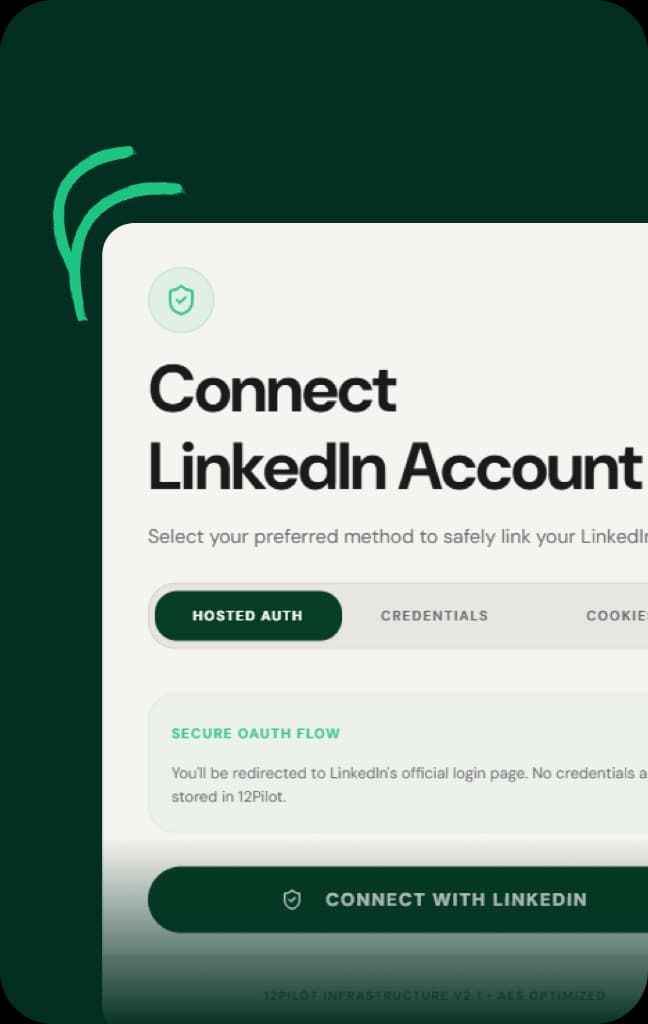
If you are looking for a cookie paste or an email/password form inside 12Pilot, you will not find one. Adding a seat is Connect Account → LinkedIn’s official login in a new tab → return to 12Pilot. The workspace updates when the login finishes.
This is the path the product actually uses today.
Before you click Connect
- You are signed in to 12Pilot and on the right workspace.
- Your plan still has a free LinkedIn seat. Free workspaces lock Connect. If the page says you have hit the seat limit, upgrade or disconnect a seat you do not use.
- Allow pop-ups for 12pilot.net. The login opens in a new tab.
- Have the LinkedIn email, password, and phone (or authenticator) for that profile. 2FA happens on LinkedIn, not in 12Pilot.
Do not share one login across two teammates. One human, one seat.
Step by step
1. Open LinkedIn Accounts
In the sidebar: Outreach → LinkedIn Accounts. You should see any seats already connected, plus Connect Account.
2. Start Connect Account
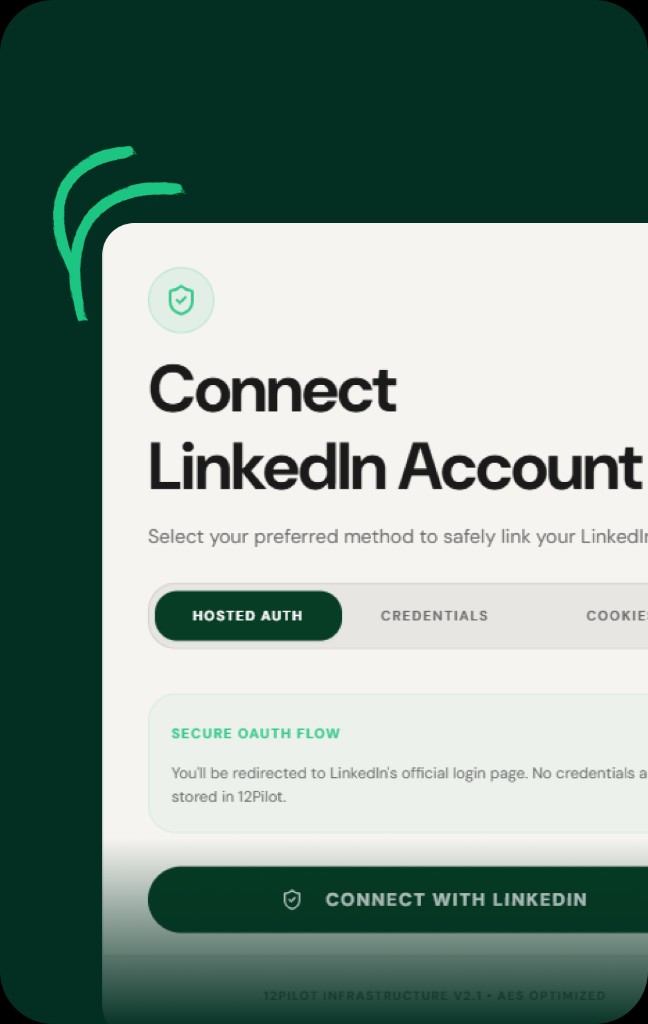
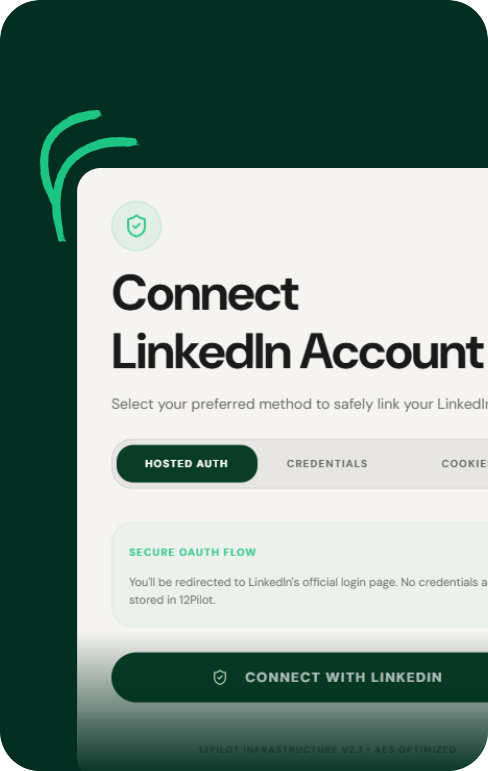
Click Connect Account. The dialog is titled Connect LinkedIn Account. Copy on the screen: you will be sent to LinkedIn’s official login. 12Pilot does not store that password.
Click Connect with LinkedIn.
3. Finish login in the new tab
Log in as the profile you want as a sender. Approve any LinkedIn checkpoint (SMS, app, email). Do not close the 12Pilot tab.
The dialog says Complete the login in the new tab, then come back — this tab updates automatically. It waits up to 120 seconds. If you sit on LinkedIn longer than that, click Connect again and finish faster — the seat is often already created; a second click is only if the first poll timed out.
4. Confirm the seat is live
You should see a success state, then the dialog closes. The account appears on LinkedIn Accounts with avatar and name. Status should be connected, not pending or error.
Optional: Detect tiers so 12Pilot can set invite/message caps from Free / Premium / Sales Nav instead of a generic default. Then open settings on that seat and set daily limits below what LinkedIn will tolerate. See LinkedIn connection limits in 2026.
After it is connected
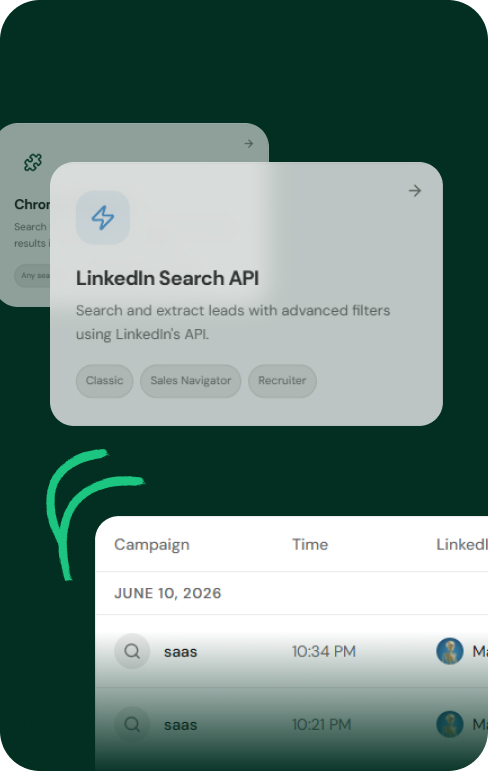
- Campaigns and AI Outreach need at least one live seat.
- Unibox only shows threads for seats that are connected.
- Prospect Extractor runs against the workspace; sending still uses this LinkedIn account’s daily cap.
If you run an agency, connect one seat per client brand, name them clearly, and keep replies in Unibox.
If connect fails
| What you see | What to do |
|---|---|
| Popup blocked / no new tab | Allow pop-ups, try Connect with LinkedIn again. |
| Timed out after 120s | Finish LinkedIn login, then Connect again or refresh LinkedIn Accounts. |
| Seat limit | Upgrade, or remove a seat you do not need. |
| Free plan lock | Paid plan required for Connect. |
| Warning / restricted LinkedIn | Stop. Do not reconnect into a banned profile. |
| Connected but campaigns error | Use Reconnect on that card. Same LinkedIn login, keeps history. |
Chrome extension is not how you add the seat. The extension is for live LinkedIn pages (for example extractor). Connect Account is the login tab. Install the extension later if a flow asks for it.
What not to do
- Do not paste a session cookie or a password into a random 12Pilot field. The connect dialog does not ask for them.
- Do not add the same LinkedIn user twice as a “new” account when you meant Reconnect.
- Do not jump a new profile to 80 invites on day one.
Log in to 12Pilot, open LinkedIn Accounts, and connect the seat you will actually send from.
Questions about limits, Unibox, or sending? See the 12Pilot FAQ.